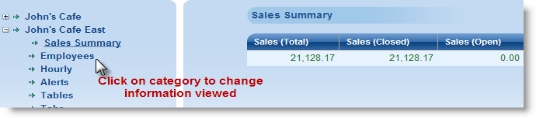
Navigating the information on devices will vary as well. The report categories on a computer are listed as a menu tree. You can navigate the different categories by clicking on the category itself.
Navigating data on a Windows Mobile device or iPhone/iPod differs slightly due to the limited screen size inherent in these devices. The report lists on these devices are for the most part similar in presentation. However, you will have to use the “back” option on the device to return to the default report list.
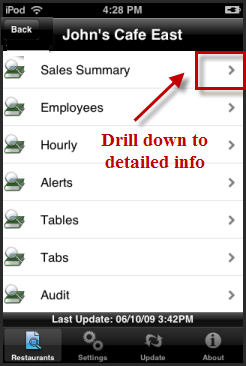
On a mobile device (i.e. IPhone or Blackberry) you can use the arrow on the right side of the report category to drill down the information as shown above.
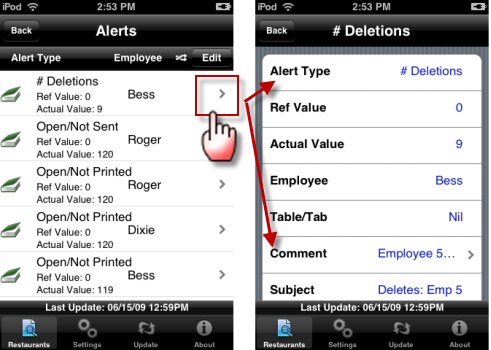
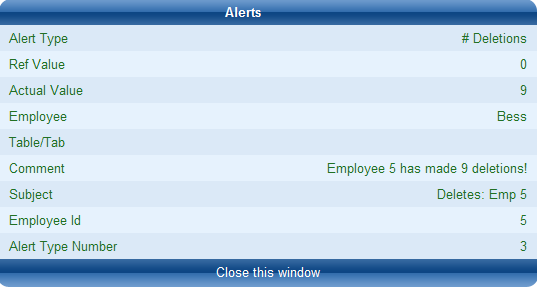
You can drill down even further on some reports. In the screen shot below we are drilling down to get specific details on the deletion alert found in our Alerts report:
This same information can be viewed on the RM Monitor Desktop format by hitting the magnifying glass icon (View) usually found on the last column of the report category:
You may arrange the way columns on a desktop or rows on a mobile device can be arranged. Due to the inherent difference between devices (i.e. screen size) the methodology to achieve this task differs.
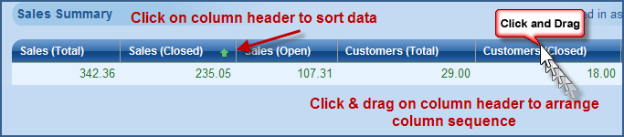
Desktop- Computer- On the desktop of a computer, the columns can be arranged by clicking and dragging the column headers into position. In addition you may sort the data by clicking on the column header. This option is not available from mobile devices.
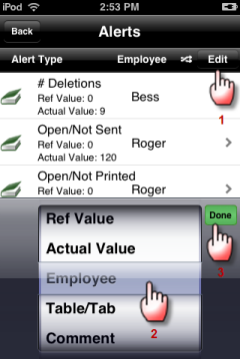
IPhone/iPod Touch- To sort information on a mobile device (iPhone, Blackberry) you must first select a report category. Next, press “Edit” option on the title bar (top of screen). A pop up screen will appear allowing you to choose a filter. Scroll through the filters until your choice appears in the selection bar and the press “Done”.
Note: This option is not yet available on Windows Mobile devices